
Social media platforms constantly update their image size requirements, making it challenging to keep your visuals looking sharp across all channels. Whether you’re a digital marketer, content creator, or small business owner, posting images with the wrong dimensions leads to pixelated, awkwardly cropped, or low-quality visuals that harm your brand's credibility. This definitive guide provides the exact image dimensions you need for every major platform in 2026.
Why Image Dimensions Matter for Social Media SEO
Before diving into the pixel counts, it's critical to understand why image resizing matters. Platforms like Instagram and X (formerly Twitter) use specific aspect ratios. If your image doesn't match, their compression algorithms will automatically crop and compress your photo, often destroying the quality. By pre-resizing your images using a free online image resizer, you maintain 100% control over the focal point and clarity of your post.
Instagram Image Sizes (2026 Updated)
Instagram is primarily a visual platform, making aspect ratios non-negotiable. Here are the exact dimensions you need:
- Profile Picture: 320 x 320 px (1:1 ratio)
- Square Post: 1080 x 1080 px (1:1 ratio)
- Portrait Post (Highly Recommended): 1080 x 1350 px (4:5 ratio)
- Landscape Post: 1080 x 566 px (1.91:1 ratio)
- Instagram Stories & Reels: 1080 x 1920 px (9:16 ratio)
Pro Tip: Portrait posts (1080 x 1350) take up the most vertical real estate on a user's phone, leading to higher engagement rates. Use our online photo cropper to achieve the exact 4:5 ratio in seconds.
Facebook Image Dimensions
Facebook's layout requires distinct sizes for personal profiles, business pages, and groups.
- Profile Picture: 170 x 170 px (displays at 128x128 on mobile)
- Cover Photo (Page): 820 x 312 px (desktop) / 640 x 360 px (mobile)
- Cover Photo (Group): 1640 x 856 px
- Shared Image Post: 1200 x 630 px
- Facebook Event Cover: 1200 x 628 px
- Facebook Stories: 1080 x 1920 px
Always keep important text or logos in the "safe zone" (the center 640x312 pixels) of your cover photos so they aren't cut off on mobile devices.
X (Twitter) Image Sizes
X moves fast, and images that aren't properly sized are often skipped by scrollers. Ensure your tweets look professional:
- Profile Photo: 400 x 400 px
- Header Photo: 1500 x 500 px
- In-Stream Photo: 1600 x 900 px (recommended for maximum clarity)
- Twitter Card Image: 1200 x 628 px
LinkedIn Image Requirements
For B2B marketing and professional networking, LinkedIn requires high-resolution, unpixelated images. If your company banner is blurry, it reflects poorly on your brand. To format your dimensions precisely without quality loss, use our Image Resizer.
- Personal Profile Picture: 400 x 400 px
- Personal Background Photo: 1584 x 396 px
- Company Logo: 300 x 300 px
- Company Page Cover: 1128 x 191 px
- Shared Link Image or Post: 1200 x 627 px
YouTube Thumbnail and Channel Art Sizes
YouTube is a search engine, and your thumbnail is your biggest SEO asset. A correctly sized thumbnail dramatically increases Click-Through Rate (CTR).
- Profile Picture: 800 x 800 px
- Channel Cover Art: 2560 x 1440 px (However, the "safe area" for text and logos on all devices is 1546 x 423 px)
- Video Thumbnail: 1280 x 720 px (16:9 ratio, maximum file size 2MB)
If your thumbnail exceeds YouTube's 2MB limit, you don't need to rebuild it. Simply drop it into our free image compressor to reduce the file size by 80% without losing visual quality.
How to Resize Images for Free (Without Software)
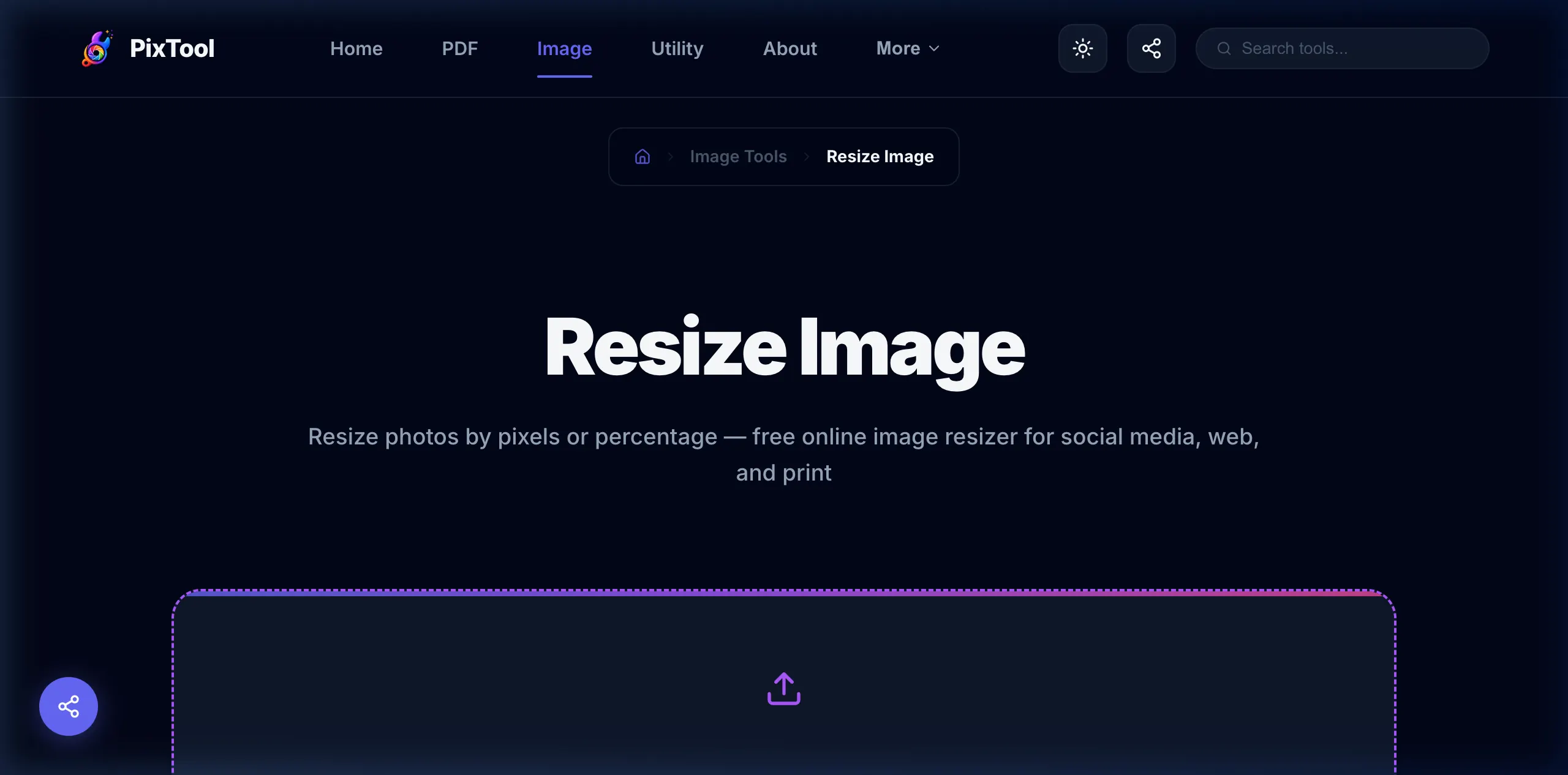
You don't need expensive software like Photoshop to prepare your images for social media. With PixTool's free image resizer, you can adjust dimensions in seconds directly in your browser.
Step-by-Step Resizing:
- Navigate to the Image Resize tool.
- Drag and drop your photo (it stays securely on your device—we never upload your files to a server).
- Select "Custom Dimensions" and enter the exact width and height needed for your target platform (e.g., 1080 x 1350 for Instagram).
- Click "Resize" and instantly download your perfectly optimized image.
Conclusion
Keeping track of social media image sizes doesn't have to be a headache. By bookmarking this guide and utilizing browser-based tools like PixTool, you can ensure your brand always looks sharp, professional, and optimized for maximum engagement across every platform.
Frequently Asked Questions (FAQ)
- Why do my Facebook uploads look blurry? Facebook automatically compresses images upon upload. To prevent this, upload images in PNG format if they contain text, and ensure the dimension is exactly 1200x630px. Ensure the file size is under 100KB using our compressor to avoid harsh algorithmic compression.
- What is the best aspect ratio for Instagram in 2026? The 4:5 aspect ratio (1080x1350px) is currently the best for engagement as it occupies the maximum vertical space on a smartphone screen.
- Can I resize images safely without losing quality? Yes! When downsizing, you rarely lose noticeable quality. When upsizing, use an AI Upscaler rather than stretching the image manually. Always keep aspect ratios locked if you aren't cropping.